LW Antenna Check
Is my antenna OK? Find out without leaving KiCad. The free plugin simulates the VSWR of the antenna on your open board.
When the VSWR is bad, LW RF Studio shows you why and gives you the clues to fix it.
Download the plugin (zip, 11 KB) See the licences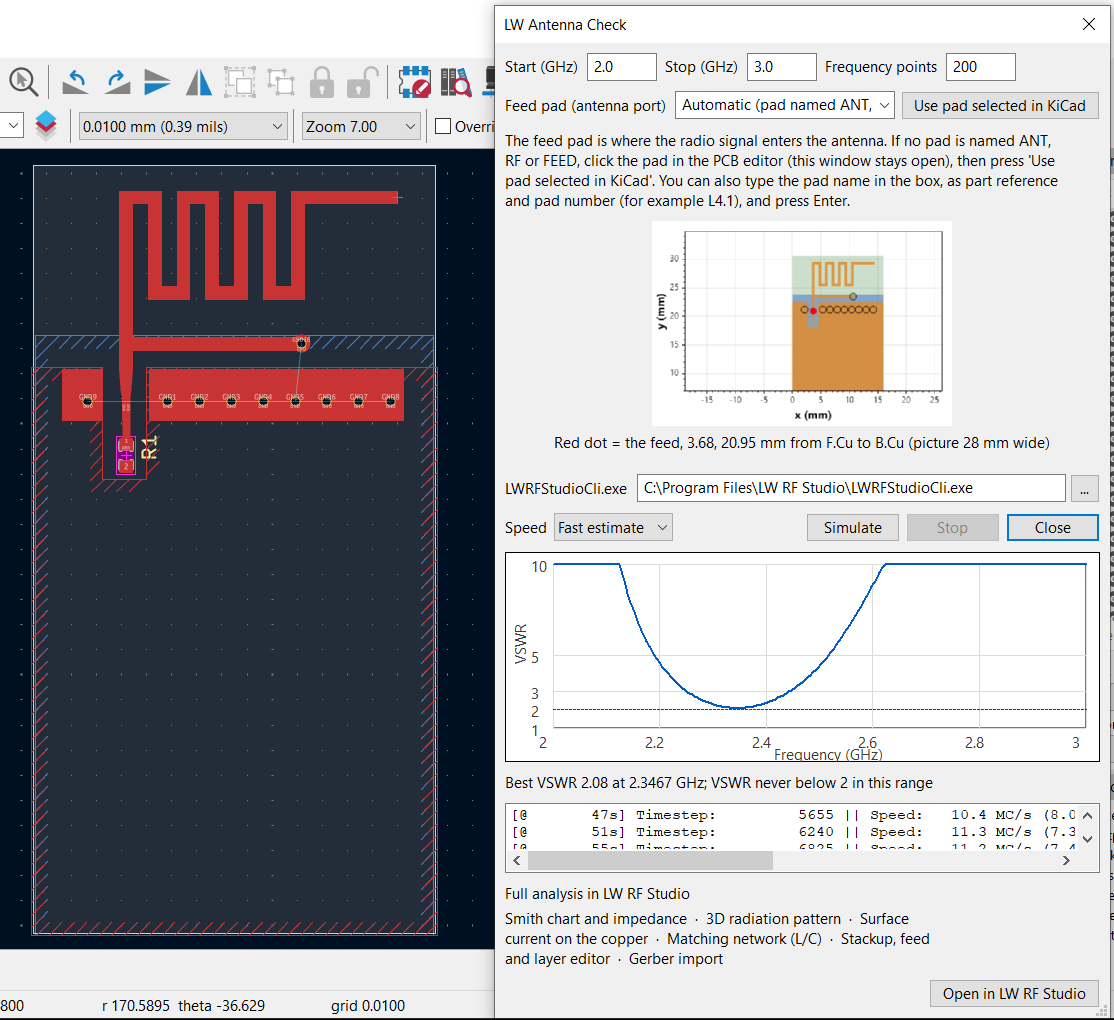
What it does
VSWR vs frequency
Set the start and stop frequency, and get the VSWR curve with the best match and the band where the VSWR is below 2.
Feed pad preview
The pad named ANT, RF or FEED is the antenna port. Or click a pad in the PCB editor and press Use pad selected in KiCad. A picture shows where the feed is.
Three speeds
Fast estimate gives a first look in about a minute, Standard is for tuning, Accurate for the final check.
Your real board
The saved board is simulated as it is: the stackup, the copper, the vias and the outline, with the openEMS FDTD solver.
Stays on your PC
The simulation runs on your PC. Your board is not uploaded anywhere.
Open in LW RF Studio
One click opens the board in the full program: Smith chart and impedance, 3D radiation pattern, surface currents, a matching network with real parts, and Fusion 360, Altium, Eagle and Gerber import.
Install
- Install LW RF Studio on the same PC. It includes the simulation engine, and the plugin uses its command line program
LWRFStudioCli.exe. If the setup finds KiCad 7, 8, 9 or 10 on your PC, it offers to install the plugin for you (ticked by default). Then you are done: go to step 3. - Manual install, if you skipped it or KiCad is installed later: unzip lw_antenna_check.zip and copy the folder
lw_antenna_checkto KiCad's plugin folder (KiCad 8, 9 and 10:Documents\KiCad\<version>\scripting\plugins) and restart the PCB editor. - Save the board, then open Tools > External Plugins > LW Antenna Check and click Simulate.
Alternative: install with KiCad's plugin manager
If you prefer that KiCad installs the plugin itself, download lw_antenna_check-pcm.zip (a package for KiCad's plugin manager). Do not unzip it.
- In the KiCad main window (the project manager), click Plugin and Content Manager.
- Click Install from File... at the bottom of the window and choose the downloaded
lw_antenna_check-pcm.zip. - LW Antenna Check appears in the list as pending: click Apply Pending Changes.
- Open the PCB editor (restart it if it was open) and look under Tools > External Plugins > LW Antenna Check. If it is not there, click Refresh Plugins in the same menu.
The plugin still needs LW RF Studio on the same PC, because it uses its command line program: install it first (you can leave the KiCad plugin box unticked in the setup).
The VSWR simulation is free and has no time limit. The full-analysis features of LW RF Studio are included in the 30-day trial; after it they need a licence.
The result is indicative: full accuracy and detail are in LW RF Studio.
Frequently asked questions
What is LW Antenna Check?
A free plugin for the KiCad PCB editor that simulates the VSWR of the antenna on your open board with the openEMS FDTD solver, and shows the VSWR against frequency with the best match and the band where the VSWR is below 2.
Which KiCad versions does it work with?
KiCad 7, 8, 9 and 10 on Windows. The LW RF Studio setup offers to install the plugin when it finds KiCad on the PC.
Is it really free?
Yes. The VSWR simulation has no time limit and no fee. It needs LW RF Studio on the same PC, because the plugin uses its simulation engine. The other analysis features of LW RF Studio are free for 30 days, then need a licence.
How do I choose the antenna feed?
A pad named ANT, RF or FEED is used as the antenna port automatically. Otherwise click the pad in the PCB editor and press Use pad selected in KiCad; a picture shows where the feed is.
Is my board uploaded anywhere?
No. The simulation runs on your PC and the board is not uploaded.