
From PCB antenna to 50 ΩSimulate and optimize IFA, MIFA or any planar antenna. Made by RF engineers for RF engineers.
The free KiCad plugin LW Antenna Check computes the gain and VSWR of your antenna from inside the PCB editor.
Buy a licence See the pricesFor Windows, Linux (Ubuntu) and macOS: all downloads.
LW RF Studio
Design printed antennas on any stackup and simulate them with openEMS, on the CPU or on the GPU.
Parametric model
Any stackup of metal and dielectric layers. Every dimension is an expression of named parameters, with a tuning slider for the selected one.
Import your board
KiCad .kicad_pcb, Eagle .brd, Autodesk Fusion Electronics .fbrd, Altium .PcbDoc, Gerber and Excellon files (also panels), and MATLAB pcbStack scripts, with copper, vias, outline and stackup.
Automatic mesh
Mesh lines on metal edges, feeds and vias, graded cells over ground planes, PML absorbers. Quick and Accurate presets, one thread per performance core.
Results
S11, input impedance, VSWR and Smith chart, with the resonance and the −10 dB bandwidth. Compare with a VNA measurement (.s1p). Results are saved with the project.
Radiation pattern
XY, XZ and YZ cuts and a 3D pattern in dBi, vertical and horizontal polarization, directivity and efficiency. Current distribution on the copper.
Export and reports
KiCad footprints, Eagle libraries and Altium .PcbLib footprints with the origin at the feed. Printed and PDF reports.
Metal parts and casing
Boxes of metal or plastic around the board, simulated with the antenna: a plastic casing with its wall thickness, a shield can, a battery. See what they do to the resonance before you build.
GPU simulation
With an NVIDIA graphics card, the simulation runs on the GPU, 10 to 15 times faster than on the CPU, with the same results. LW RF Studio chooses the engine itself and falls back to the CPU. With the Professional licence, the Studio Pack and the trial.
Windows, Linux and macOS
The same program on Windows 10/11, Linux (Ubuntu) and macOS (Apple silicon and Intel), with the same projects and the same licence terms.
SmithMatch
Add L and C to a pi network and see live how each part moves the impedance towards 50 Ω. Open it with Tools > SmithMatch, or send the simulated antenna impedance to it from the Matching tab.
Smith chart
Z and Y grids for any Z0, zoom, datapoints by click or typed R + jX, cursor readout of return loss, VSWR, Q and Γ.
Auto-match
Every L-network solution, low-pass and high-pass, with live preview. The Matching tab of LW RF Studio proposes the same networks on the simulated curve.
Würth Elektronik kits
WE-MK 0402 inductors (kit 744784) and WCAP-CSRF 0402 NP0 capacitors (kit 885390), with their order codes.
From the simulation to the fix
Every result is a clue: what is wrong, where it comes from, and what to change.
See where your antenna resonates
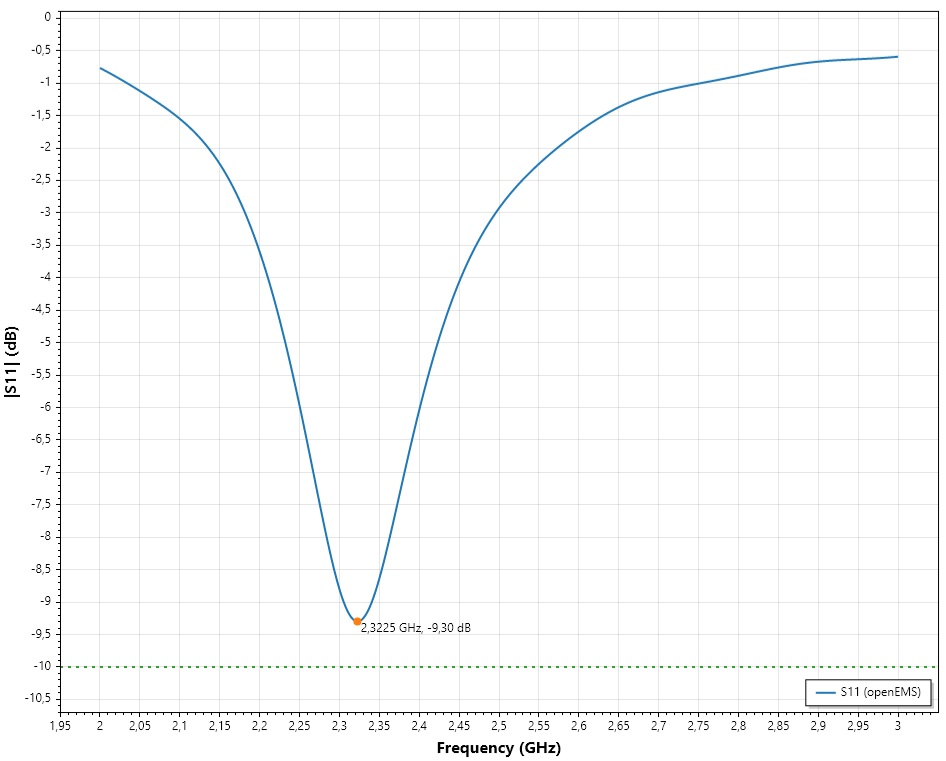
The S11 curve shows how much power the antenna reflects at each frequency. The program marks the lowest point, here 2.40 GHz at −9.15 dB, and draws the −10 dB line so you see at once whether the antenna is matched, and how wide the band is.
It is simulated on your real board and stackup with openEMS, not estimated from a formula. If you have a VNA measurement (.s1p), you can plot it on the same curve.
Read the impedance behind the S11
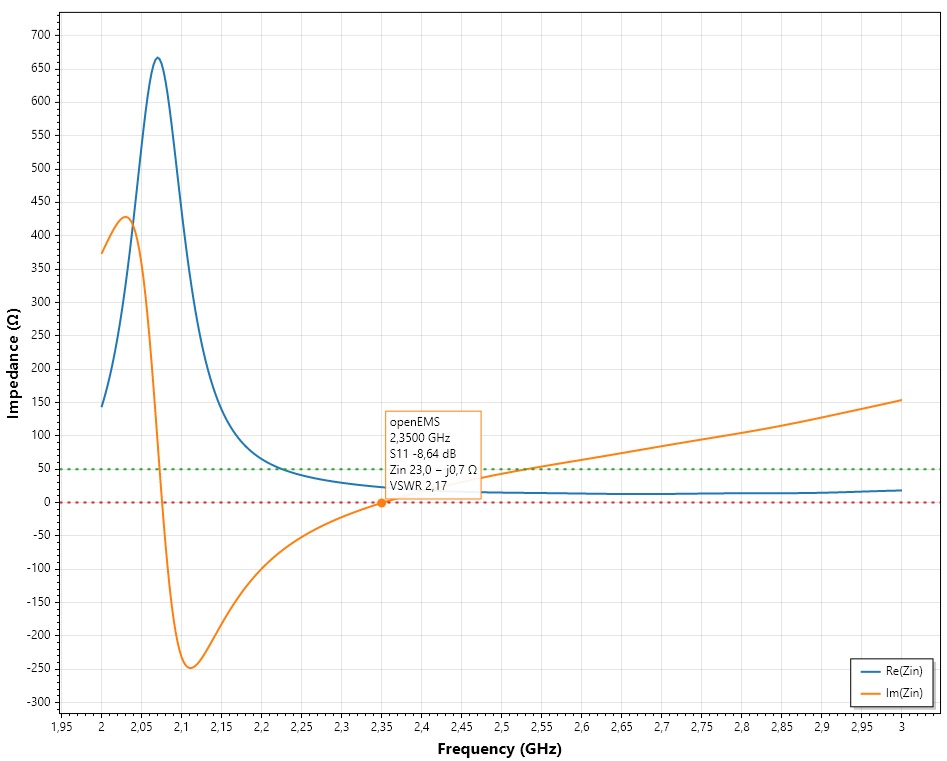
S11 tells you that the match is bad; the impedance tells you why. The real part and the imaginary part of Zin are plotted over frequency, with the 50 Ω and 0 Ω reference lines. Click a point to read S11, Zin and VSWR.
Here, at 2.425 GHz, the reactance is close to zero (+1.8 Ω) and the real part is 31.4 Ω, a VSWR of 1.59: the antenna is resonant but its resistance is below 50 Ω. That is a clue for the next step.
Watch the match on the Smith chart
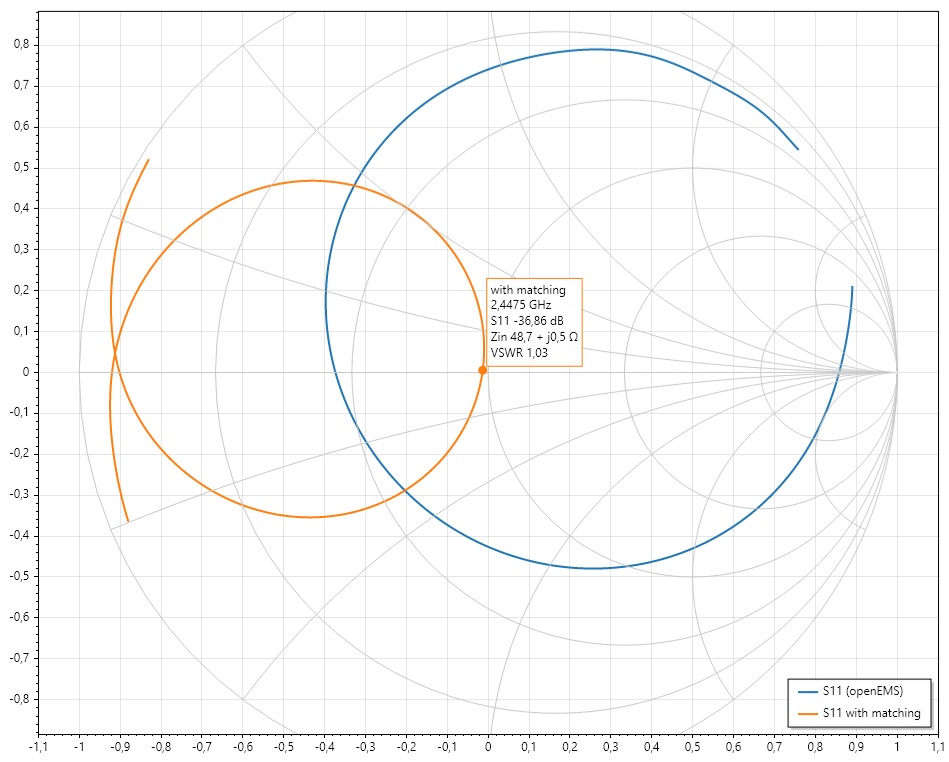
The blue curve is the simulated antenna on the Smith chart. The orange curve is the same antenna after the matching network: the curve is moved to the centre, which is 50 Ω. A click gives the frequency, S11, impedance and VSWR (here 50 Ω and a VSWR of 1.00 at 2.45 GHz, after matching).
You see how every part you add moves the impedance, so you learn what the network does, not only the final numbers.
Get a matching network with parts from the bench
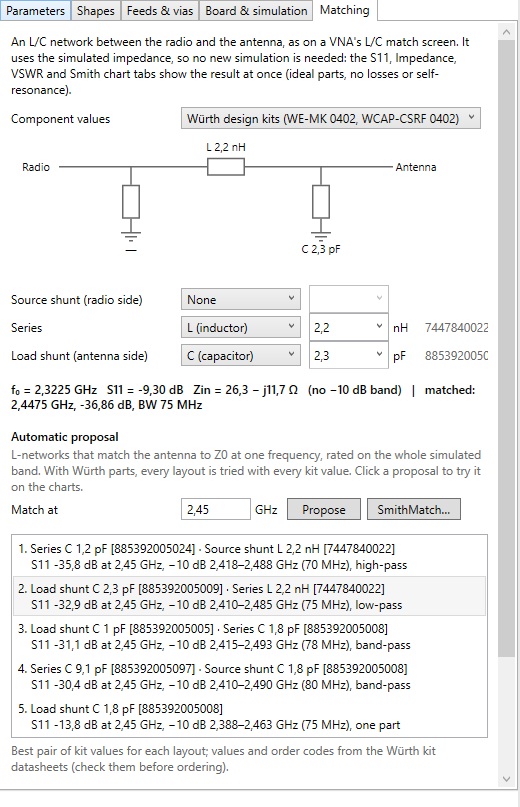
Pick a layout (series and shunt L or C) and the values from the Würth Elektronik design kits, and the S11, impedance, VSWR and Smith chart tabs update at once, using the simulated impedance. No new simulation is needed.
Press Propose and the program tries every layout with every kit value, rates each on the whole band, and lists the best ones with their order codes. Click a proposal to see it on the charts.
Know where the energy goes
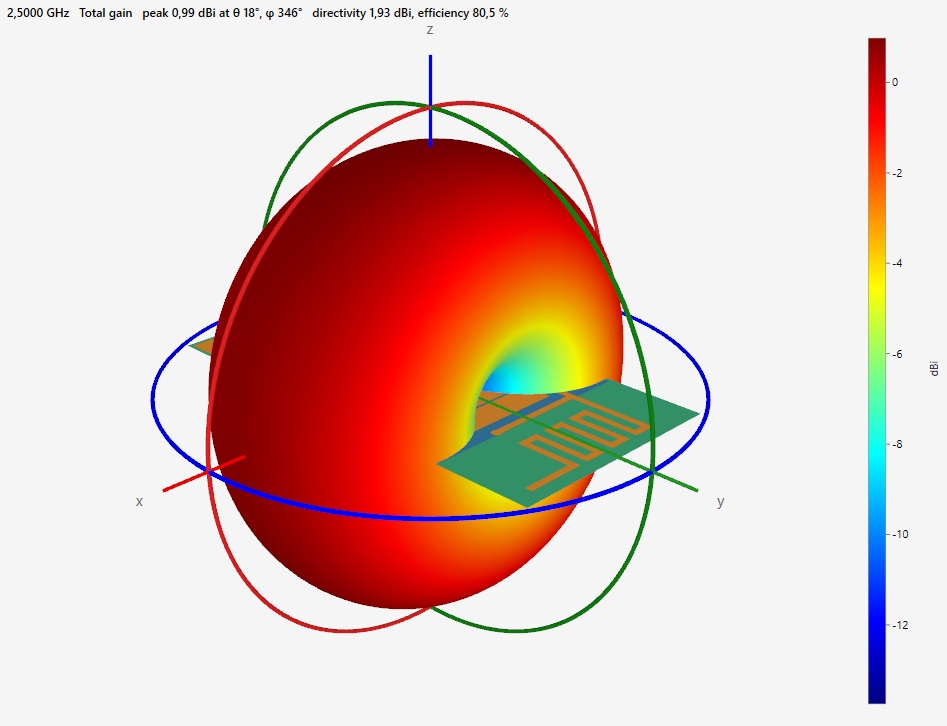
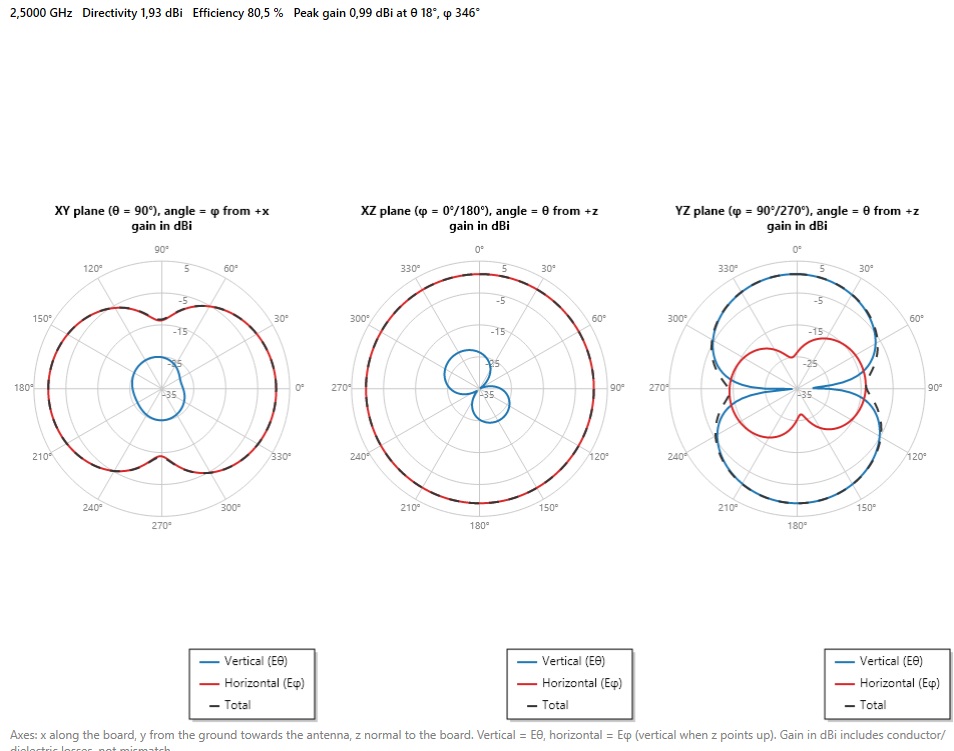
The radiation pattern is shown in the three principal planes, in dBi, for vertical and horizontal polarization and the total. The header gives directivity, efficiency and peak gain (here 1.93 dBi, 80.5 % and 0.99 dBi).
It also shows how the board itself shapes the pattern, which is how you find out that a nice-looking antenna radiates into the wrong direction.
Find out which copper is radiating
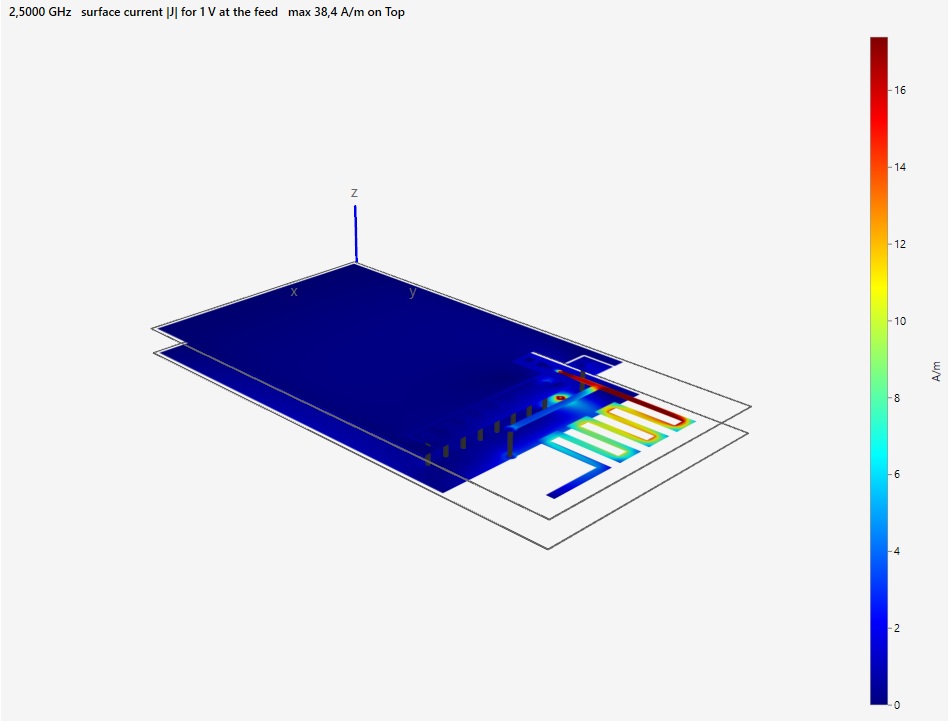
The surface current on every copper layer, at the frequency you choose, shows where the antenna really works: the meander, the feed and the edge of the ground plane. Strong current where you did not expect it is a clue to a bad ground, a nearby trace or a missing clearance.
It works on a full product board too, not only on the antenna itself.
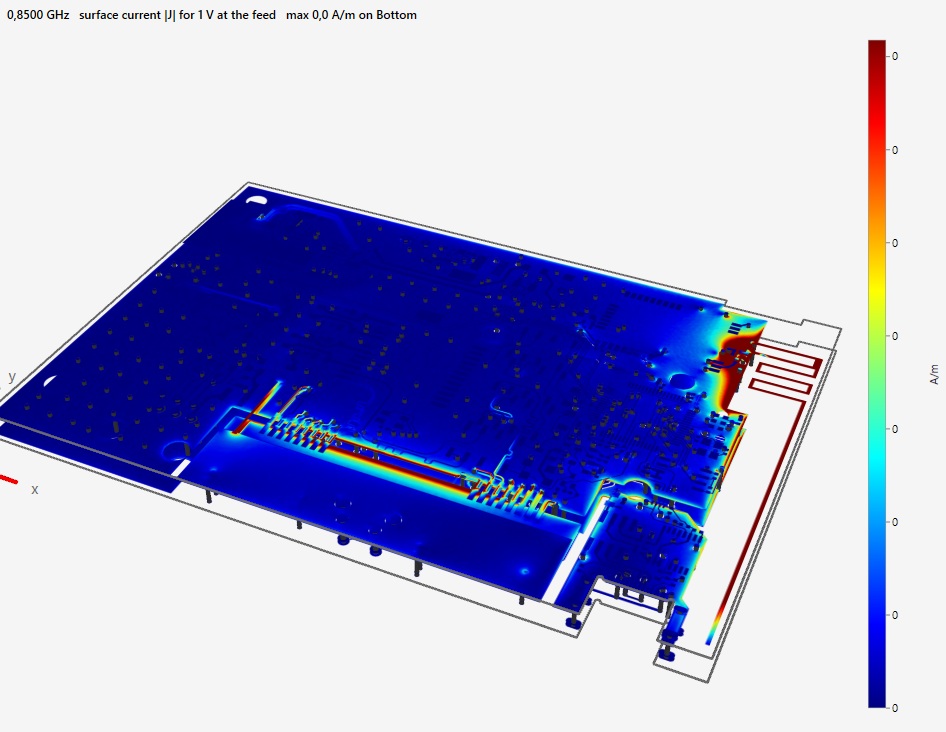
Simulate the real board, not only the antenna
Import the complete board of your product (KiCad, Eagle, Fusion 360, Altium or Gerber) and simulate it as it is: hundreds of components and vias, the ground planes, the cut-outs and the cables' attachment points, with the antenna in its real surroundings.
The picture shows the surface current on a complete product board at 868 MHz. You see how the current flows from the antenna into the ground and along the board, which is what decides the real efficiency and pattern, and what a simulation of the antenna alone cannot tell you.
See your board in 3D
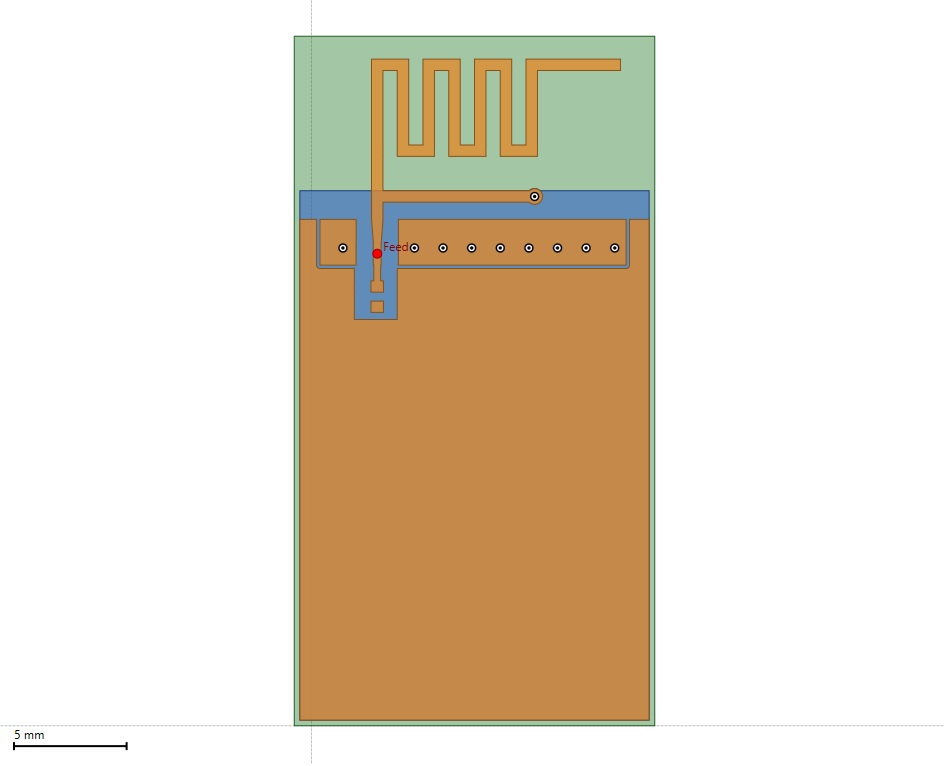
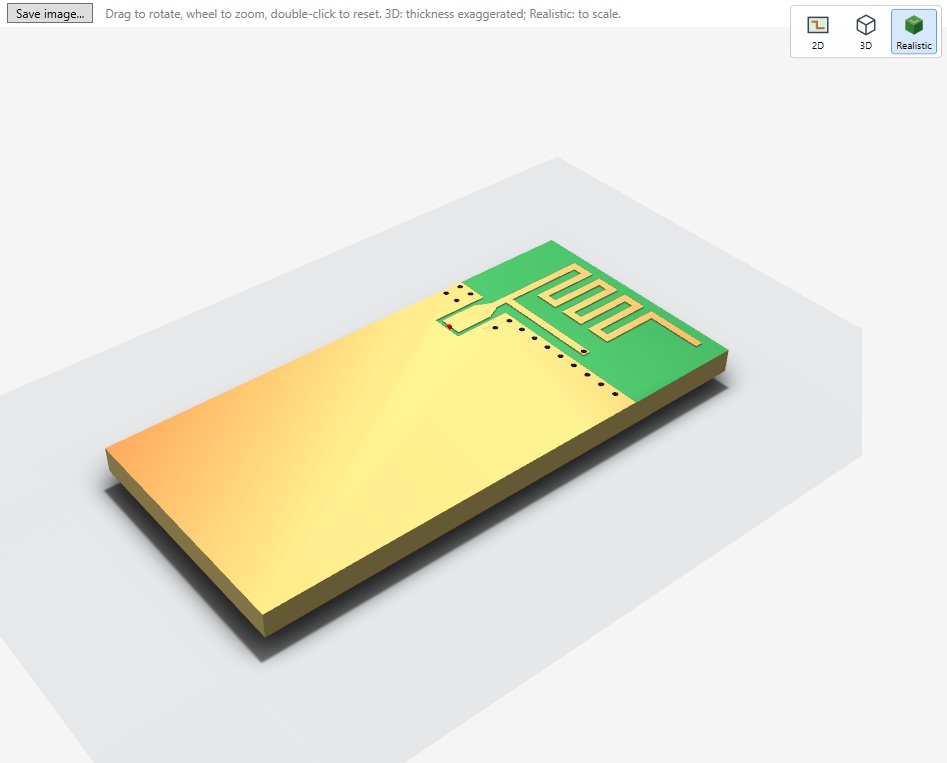
Check what is simulated before you run it. Switch between the 2D geometry, a 3D view and a Realistic view.
- Realistic is drawn to scale, with the solder mask, the copper, the drills and the holes, and soft shadows.
- 3D exaggerates the thickness so the layers of the stackup are easy to tell apart.
- Drag to rotate, use the wheel to zoom, double-click to reset. Click a shape to select it.
- The feed is marked in red. Save the picture for your report.
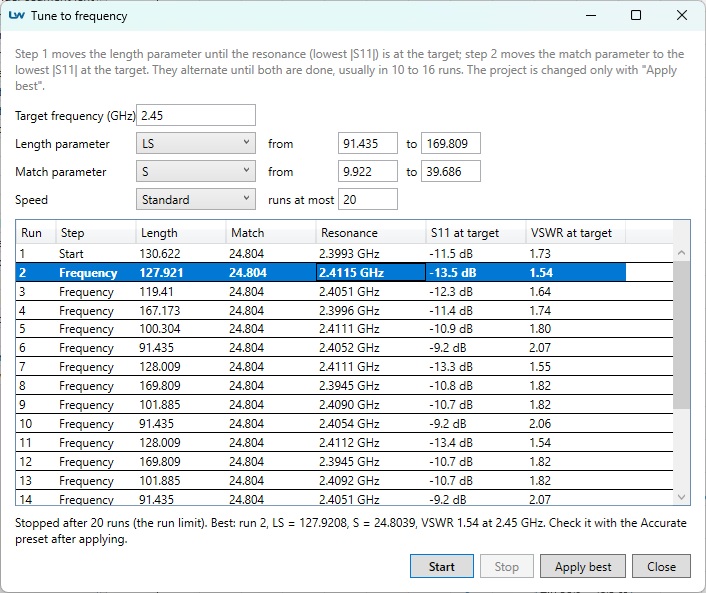
Tune to frequency
Type the frequency you want, for example 2.45 GHz, and let the solver find the dimensions. No more guessing which length to change.
- Step 1 moves a length parameter until the resonance is at the target.
- Step 2 moves a match parameter to the lowest S11 and VSWR at the target.
- The two steps alternate, usually in 10 to 16 simulations. The table shows the resonance, S11 and VSWR of every run.
- Your project is changed only when you click Apply best. Also on the command line:
LWRFStudioCli tune.
Open it with Simulate > Tune to frequency.
Simulate the casing and the metal parts
An antenna in a product is never alone. Add the plastic casing and the metal parts around the board and simulate them with the antenna.
- Plastic casing: a closed shell around the board, with its wall thickness, permittivity and loss. A casing usually moves the resonance down.
- Metal parts: a shield can, a connector or a battery near the antenna. A metal box touching the ground copper is grounded; one that floats is not.
- Drag them in the 2D view, with the grid and snap. They are drawn at their true height in 3D, around the radiation pattern, and as wire frames over the surface currents.
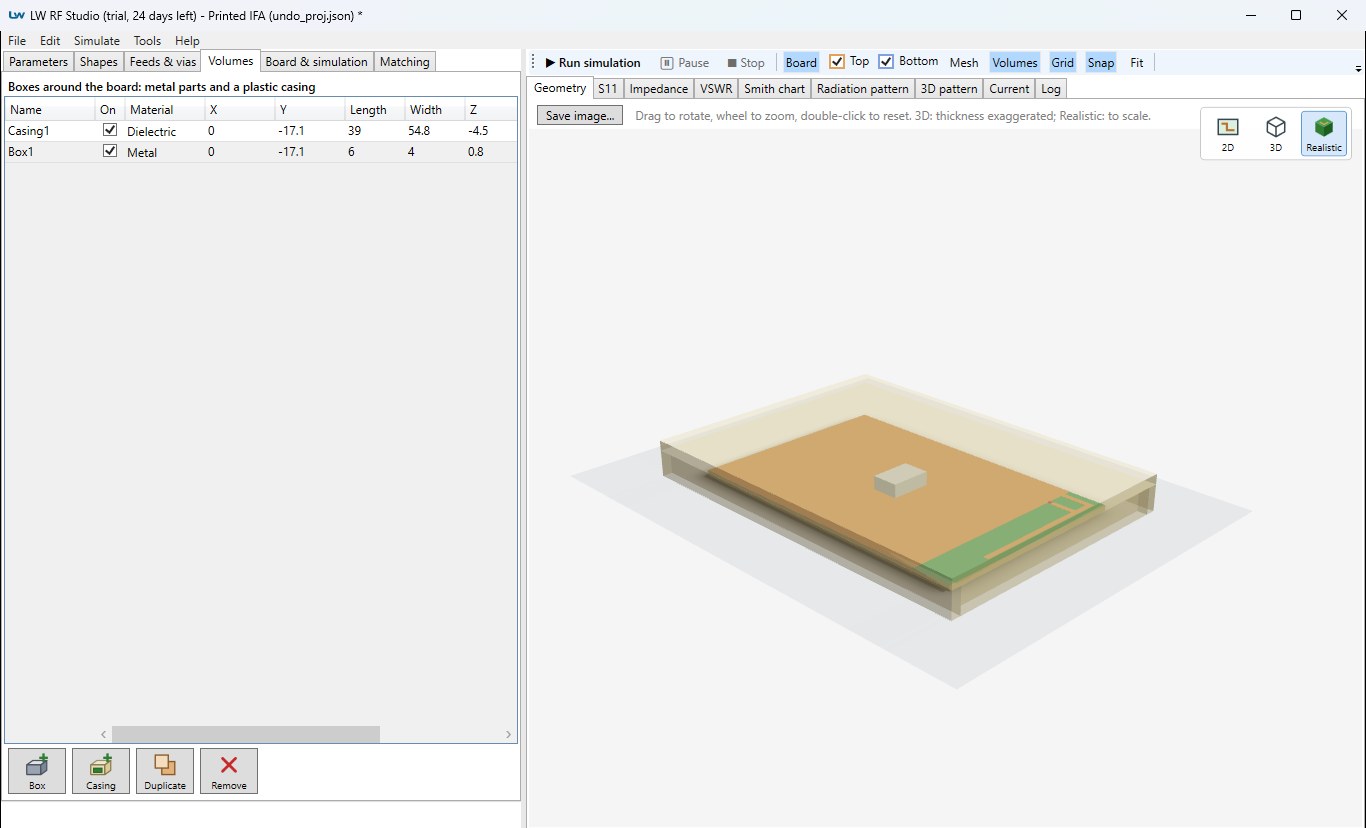
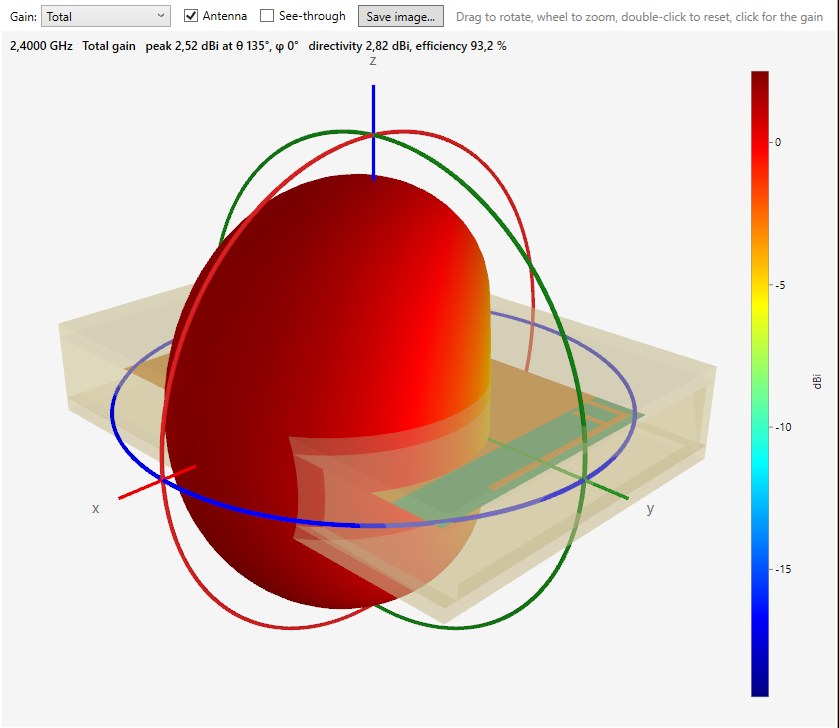
The pattern, the efficiency and the currents are computed with the volumes in place, so the casing and the parts that disturb the antenna show up in the results, not only on the bench.
The antenna stays a planar copper structure on the board; volumes are rectangular boxes of perfect metal or lossy dielectric.
Download and try
LW RF Studio starts with 30 days of the full version on every PC, GPU engine included. A licence unlocks it on your PC.
macOS
Download for Apple siliconInstall on Windows
Run the setup. If openEMS (the simulation engine) is not on the PC, the setup downloads it: openEMS with its GPU engine, which uses an NVIDIA graphics card when there is one and the CPU otherwise. On a PC with an NVIDIA card and an older openEMS, the setup offers to replace it.
Install on Linux (Ubuntu 22.04 or later, x64)
- Unpack the archive into
~/opt:mkdir -p ~/opt && tar -xzf LWRFStudio-*-linux-x64.tar.gz -C ~/opt - Add it to the application menu, as yourself and not with
sudo:~/opt/LWRFStudio-*-linux-x64/install.sh - Build openEMS into
~/opt/openEMS, where LW RF Studio finds it (not withsudo):
sudo apt install git
git clone --recursive https://github.com/thliebig/openEMS-Project.git
cd openEMS-Project
./scripts/install_deps.sh
./update_openEMS.sh ~/opt/openEMS --disable-GUI - Check:
~/opt/LWRFStudio-*-linux-x64/LWRFStudioCli engineshows the engine andopenEMS: ~/opt/openEMS/bin/openEMS.
INSTALL-linux.txt in the archive has the details. In a virtual machine, give it several CPU cores.
Install on macOS (13 or later)
- Take the download for your Mac: Apple silicon (M1 and later) or Intel. Unzip it and drag LW RF Studio.app to Applications.
- The app is not signed by Apple yet, so the first time macOS says it "cannot be opened" or "is damaged". Remove the download mark once, in Terminal:
xattr -dr com.apple.quarantine "/Applications/LW RF Studio.app"
or open System Settings > Privacy & Security and click Open Anyway. - Build openEMS into
~/opt/openEMSwith the same commands as on Linux (it needs Homebrew;./scripts/install_deps.shinstalls the packages).
INSTALL-macOS.txt in the zip has the details. On a Mac, openEMS runs on the CPU.
Trial and licence
The program starts with 30 days of the full version on your PC. After that, it needs a licence. A licence is for one PC: in the program, open Help > Licence, copy the PC ID and paste it in the order form. You receive the licence by e-mail; paste it in the same window and click Activate.
Licences of PCB Antenna Designer do not work in LW RF Studio: contact us for a new one.
Windows 10/11 64-bit, Linux x64 (Ubuntu 22.04 or later) and macOS 13 or later (Apple silicon and Intel), self-contained (no .NET to install). On Windows, the setup downloads openEMS (with its GPU engine) if it is not on the PC; on Linux and macOS, openEMS is built from source into ~/opt/openEMS. openEMS is free software (GNU GPL v3), see its source code. Not affiliated with Würth Elektronik or the authors of openEMS.